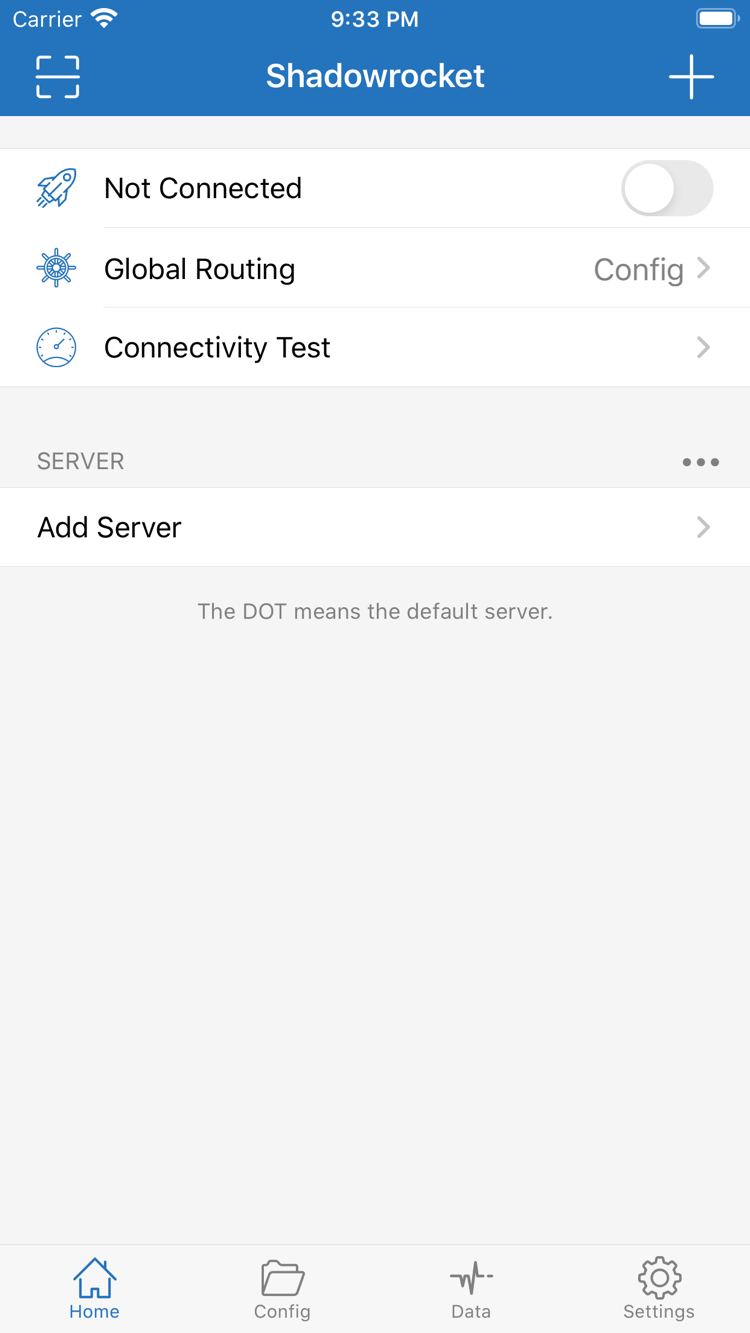
Choose a Global Routing mode
Check Global Routing on Home. Config uses the rules in the active configuration to handle connections; Proxy routes traffic through a proxy, while Direct connects without one. For domain-based routing, confirm the intended configuration is selected, then choose Config. Temporarily switching modes can help distinguish a rule issue from a server issue, but it won’t fix an incorrect address, password, or transport setting. After each change, test the same destination and restore your original setting when finished.
Global Routing: Config
- Use rules
- Run a temporary comparison test
- Check the current mode
Rules and rule-based routing
In Config, check the active configuration’s Rule. Rules are generally evaluated in order, so put more specific conditions before catch-all rules. DOMAIN-SUFFIX matches domain suffixes; FINAL handles connections that haven’t matched an earlier rule. PROXY in an example must correspond to an available policy in the configuration. Copying a rule without defining its policy isn’t enough. Save the original configuration before editing, then check which rule actually matches. Verify the target domain, DNS result, and rule type separately if they don’t line up.
DOMAIN-SUFFIX,example.com,PROXY
FINAL,DIRECT
- Match a domain suffix
- Check the catch-all rule
- Check the policy name
Multiple protocols and Add Server
Shadowrocket supports protocols including Shadowsocks, VMess, VLESS, Trojan, and Hysteria2. When adding a server, choose the Type in Add Server that matches your existing server details, then enter Host, Port, and the required authentication fields. Each protocol has different fields; UUID, Password, TLS, and transport settings aren’t interchangeable. After importing a link, review key fields such as the server name, port, and certificate options. A matching protocol name doesn’t mean other parameters can be omitted.
Type: VMess
Host: example.com
- Check the protocol type
- Check authentication fields
- Review after importing
Manage subscriptions with Subscribe
If you already have a subscription URL, select Subscribe in Add Server and enter the link. After saving, check that the expected servers appear in the list, then update as needed. Updating a subscription maintains server details; it doesn’t automatically activate a rule configuration. Subscription links may contain credentials, so redact sensitive information before sharing screenshots or troubleshooting details. If an update fails, first check that the link is complete and still valid, then check network access. Don’t delete the entire list repeatedly instead of investigating the cause.
https://example.com/sub?token=xxxx
- Import an existing subscription
- Update the server list
- Protect your credentials
Connect on demand with On Demand
On Demand starts connections when specified conditions are met. First confirm that a manual connection works, then review the relevant options in Settings and configure them for your network use. This feature doesn’t fix server issues or replace the system’s VPN configuration authorization. After setting it up, test what happens when switching networks and reconnecting, and check whether other connection configurations affect the result. If automatic connections don’t behave as expected, disable On Demand and compare with a manual connection before changing other conditions.
Settings → On Demand
- Test network switching
- Check automatic connection triggers
- Compare with a manual connection
Traffic statistics in Data
Data shows the client’s recorded upload, download, and related group totals. These figures reflect traffic within the statistics period; they aren’t a direct measure of the remaining balance on a service account. Check the reporting period and group definitions, then distinguish uploads from downloads. Background requests, connection retries, and transport overhead can all affect comparisons. Before resetting the counters, save any data you need. To investigate unusual readings, use the same destination and similar test durations rather than drawing conclusions by subtracting totals from different periods.
Data
- Distinguish uploads and downloads
- Check the reporting period
- Use a consistent test destination
Sync configurations with iCloud
To use an existing configuration across your own devices, check the iCloud options in the app and your system iCloud settings. Sync depends on the account, network, and what the app allows to sync. A purchase record doesn’t mean all configurations have been restored. Save important configurations before switching devices. On the new device, check the files, server details, and selected items before testing a connection. Configurations may contain authentication details, so only manage them in accounts and on devices you control; don’t share synced files publicly.
iCloud
- Check configuration across devices
- Save before switching devices
- Manage sensitive information